
CropPhoto is an advanced crop editor: crop a photo, image or picture online, to the size somebody asked for, then make it look right. Drop a file, drag the box, download. Nothing to install, nothing to sign up for, and nothing uploaded — the whole photo cropper runs in your browser.
Under the simple face is a complete cropping instrument. Lock any aspect ratio, crop into a circle or a custom shape, straighten a tilted horizon, crop for WhatsApp, Instagram or YouTube, pick a passport or exam-form requirement from the spec table, keep the file inside a KB range, and check a whole folder against one rule. The work is three steps — where it is going, how it is framed, what comes out — and the last of those is a line of numbers above the Download button that tells you the output size, the scale factor and the encoded size before you commit to them.
Need a specific job? Jump straight in: WhatsApp DP, Instagram, Passport Photo, Profile Picture, YouTube Thumbnail, Story / Reel.
Where is this photo going?
- 01
For a form or ID
A passport, visa, exam or government portal. Choose the requirement and the pixel size, the head guide and the KB range come with it, each with its source and date.
India 35×45 mm → 413×531 px, 300 ppi written into the file
- 02
For a platform
Instagram, WhatsApp, YouTube, Facebook or X. Each preset locks the ratio and draws the area that platform actually keeps.
1080×1080 · 500×500 · 1280×720 · 1500×500
- 03
For me
No destination rule. Drag the box you want, in any ratio or shape, and the file comes out at the pixels you cropped.
exported at the crop size — nothing is enlarged without saying so
Questions about cropping
Is this photo cropper really free, and is there a limit?
Yes. CropPhoto is free, has no account and adds no watermark. There are no ads on it at present, and your photo never leaves your device. Photos above 80 megapixels or 150 MB are refused before decoding, because the browser would run out of memory first — every phone and camera photo is far below that. One session holds up to 200 photos.
Do my pictures get uploaded anywhere?
No. This site is a static export — there is no server-side code and no route that accepts a file, so there is nowhere for a picture to be uploaded to. Your browser decodes the photo, paints the area inside the crop rectangle onto a canvas, encodes that canvas and hands the result to its own download mechanism. Nothing is kept, so there is nothing to delete afterwards.
How do I crop an image to an exact size in pixels?
On a wide screen the steps column is beside the workspace: open step 2, Position & size, and type the width and height. On a phone, tap More options and use the Size section. The crop box updates live. To output a different size than the crop, set the final width and height in Export — and read the contract line above the Download button, which states the crop size, the output size and the scale factor between them.
Can I crop a photo into a circle?
Yes. Open the Shape step and choose Circle (or Oval, Rounded, Heart, Star). The download is a transparent PNG, or a JPG if you pick a background colour. The /circle-crop page opens with circle mode already selected.
What aspect ratios are available?
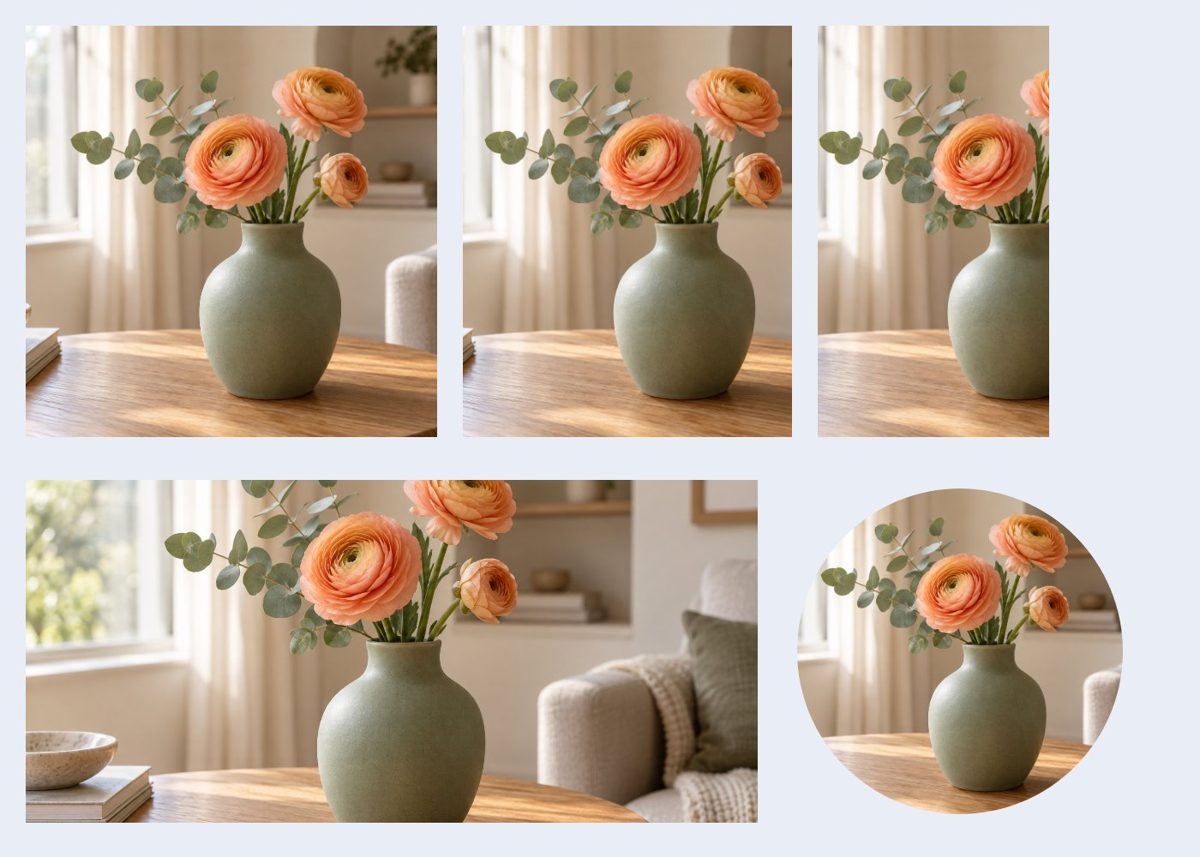
Freeform is the default. One tap locks 1:1, 4:5, 3:4, 16:9, 9:16 or A4; Custom accepts any width-to-height ratio. Tap a locked ratio again to return to freeform.
How do I straighten a tilted picture?
The Rotate & straighten step has quarter turns and a −45° to +45° straighten slider. The crop box automatically shrinks to fit inside the rotated photo, so you never export blank corners. Mirroring a photo is not a framing decision and this tool does not do it.
Can I edit the photo as well as crop it?
Yes. Beside the cropper are 72 editing tools in eight groups — Light, Colour, Looks, Detail, Effects, Frame, Text and Watermark — each listed in the toolbar on the left of the editor and opening its own panel. They are all off until you switch one on. When any edit is on, the line above the Download button names it, and the copy-only paths (lossless JPEG, exact PNG and animated GIF) pause, because an edit has to change pixels.
Can I make Amazon, Flipkart or Myntra product images here?
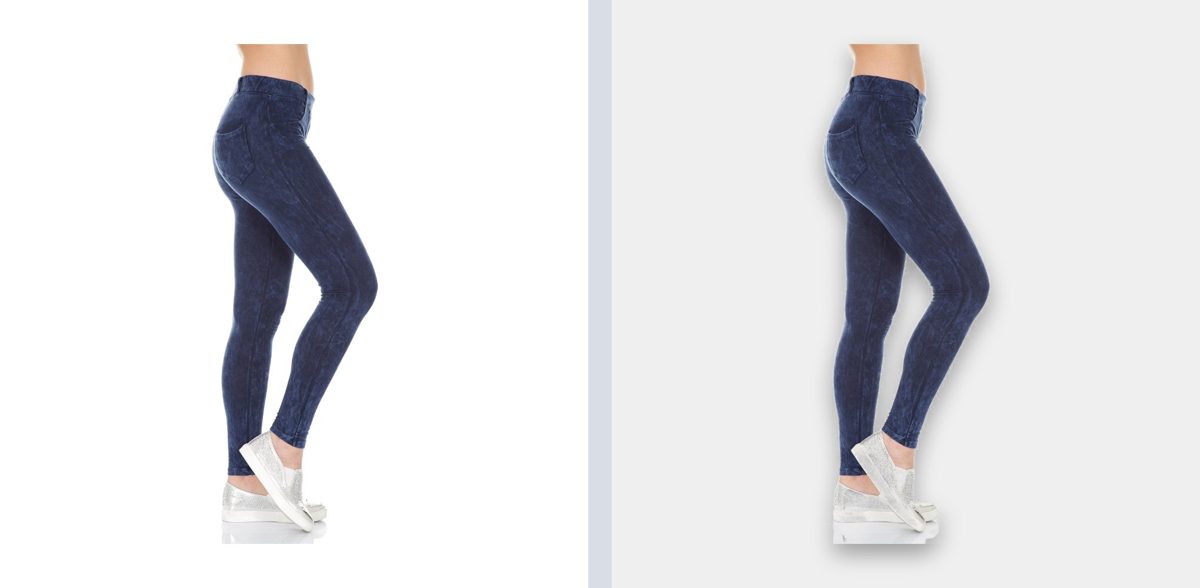
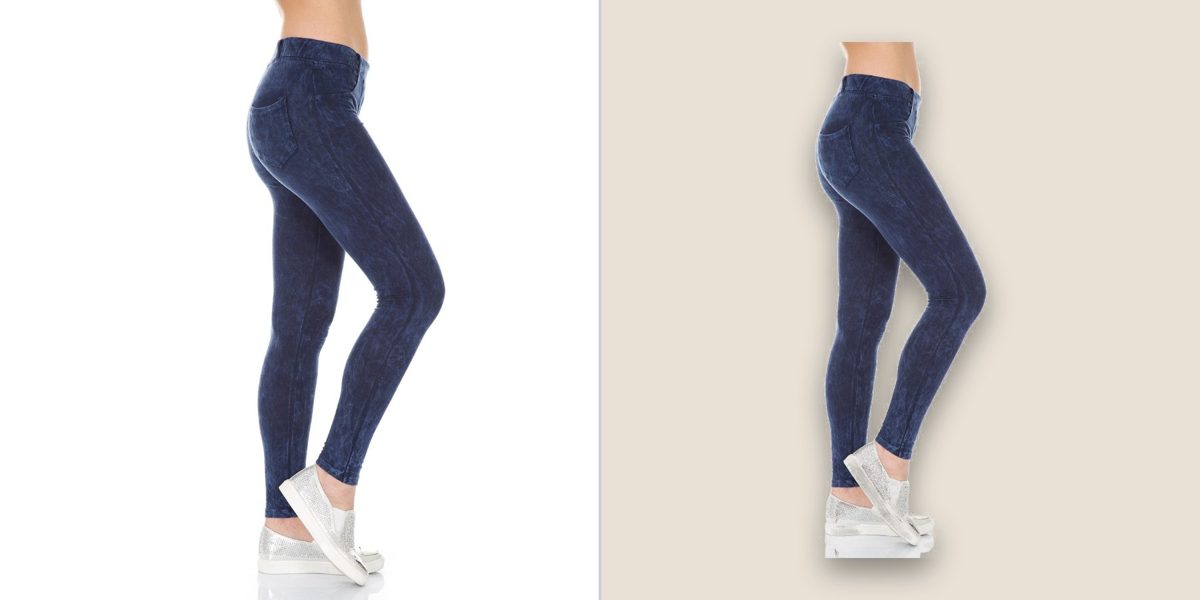
Yes, with no account. Open the Store panel and pick the store: the product is found by its plain or transparent edges and placed whole on the background that store asks for, at its pixel size and product fill, and the file is written as a JPEG within any KB range it states. Each store's numbers show where they come from and when they were checked; most stores publish their rules only inside a seller login, so check your seller panel before a large upload. A whole folder can be done in Batch with the same store rule.
How does background removal work without uploading?
Two models run in your browser on your own processor: one for people, one for products and objects. Each downloads once from our model file server when you press its button, which shows its size first, and your photo is never sent anywhere. The cut-out replaces the photo in the editor as a transparent PNG; choose a backdrop colour and a studio shadow, or put the original back.
What does AI upscale do, and is the detail real?
It enlarges the area in the crop box two or four times with a super-resolution model that runs tile by tile on your device. The sharper edges and texture it adds are the model's estimate of what was there, not information recovered from the original, so it is fine for a product thumbnail or a print that would otherwise look soft, and wrong for anything that must be evidence, such as an ID photo.
Should I use the edits on a passport or exam photo?
No. ID and exam rules ask for an unfiltered, unretouched photo, so leave every edit off for those and use only the crop, the size and the KB range. The edits are for photos you share, print or post.
Do the edits change my original file?
No. Your original is never written to. The edits are applied to the copy that is downloaded, and Reset or undo puts every slider back. Hold Original in the toolbar to compare with the photo as it was.
Can I make the file fit a KB range, like 20–50 KB?
Yes. In Export, set the file size range: a maximum such as 50 KB, and a minimum such as 20 KB if your form states one. Choosing a requirement such as the SSC photo fills both in. The cropper lowers quality to get under the maximum and raises it to reach the minimum. If a requirement fixes the pixel size, the pixels are never shrunk without your say-so, and if a range cannot be met the contract above the Download button says what the nearest file is and what to do. A file is never padded with junk bytes to reach a minimum.
Does it work on my phone?
Yes, and the phone layout is not the desktop one squeezed: the workspace, the verdict line, the ratio row, the contract and a full-width Download sit in that order, with the rest in a bottom sheet that never covers the photo. Handles are 48 px, you can pinch to zoom, and it works in Chrome, Safari, Firefox and Edge. An iPhone HEIC photo opens in Safari, which decodes HEIC itself; other browsers cannot, so they say so and suggest Camera → Formats → Most Compatible, or sharing the photo so it arrives as a JPG.
Why does my phone photo turn sideways on other sites but not here?
Phones store the camera's orientation as an EXIF flag instead of rotating the pixels. Some browsers apply that flag when decoding and some do not, so a site that rotates it again shows the photo sideways. On first use CropPhoto decodes a tiny 2×1 test image to learn which kind of browser it is in, and applies the EXIF orientation itself only when the browser has not.