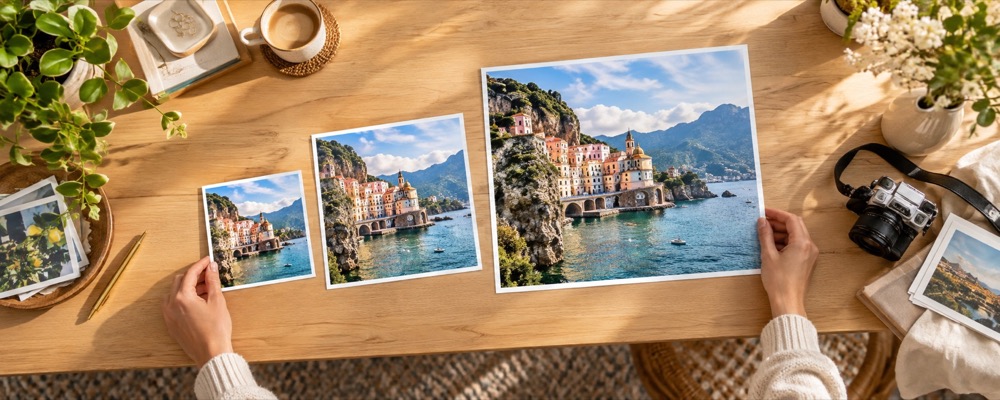

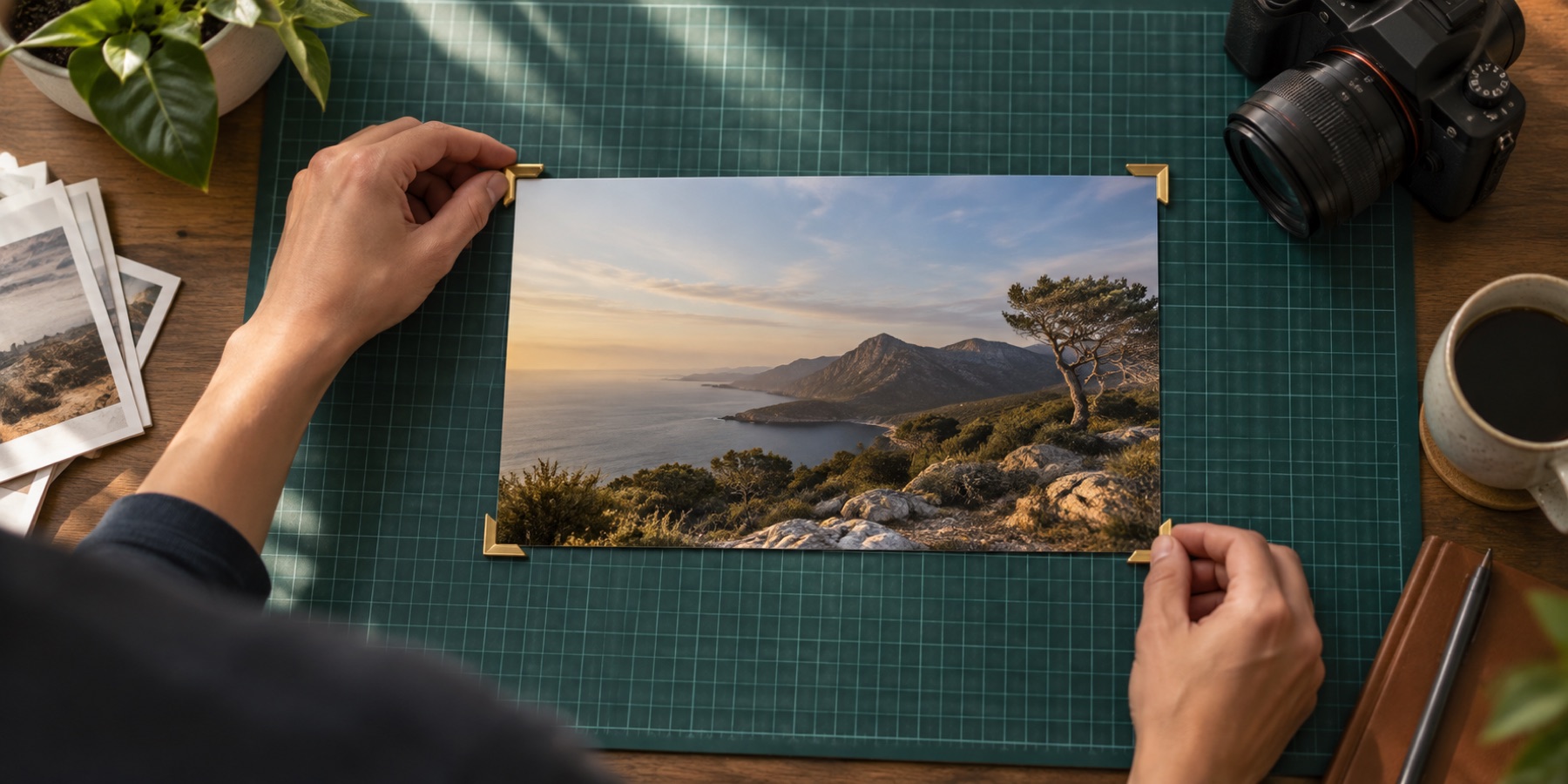
Bulk crop images, photos or pictures to one size, and get a verdict for every file before you save the batch. Choose a rule — a passport or exam-form size, a print size or an app size — and each photo comes out at exactly that rule's pixel size, in one ZIP.
The folder check is the same engine as the single-photo cropper. For each photo it takes the largest box of the rule's shape, writes the rule's pixels, patches the density into the file, and then measures the file it wrote: decoded size, real resolution behind it, plain top corners where the rule asks, and the KB range. A photo too small for the rule can be flagged or skipped, never quietly enlarged.
One photo with a published size? The passport photo cropper and the form photo cropper frame it by hand. The rules come from the spec table.
What you can do here
One rule, chosen once
Passport, exam form, signature, print or app. The rule is the setting, and every press re-runs every row against it.
A verdict per file
Each row is judged on the bytes it wrote, clause by clause. A failing photo says which clause and why.
Gentle on a phone
One full-size picture in memory at a time, released before the next. Stop keeps what is finished.
One ZIP
Every finished file in one stored archive, named with the rule and the pixel size. No pop-up storm of downloads.
How to bulk crop images
- 1Drop the photos
Select several at once or paste them. They are read in this tab and go nowhere else.
- 2Choose the rule
Pick the requirement, the format and, if the portal states one, the KB ceiling. Decide whether photos too small for the rule are flagged or skipped.
- 3Check, then save the ZIP
Press Check. Read the verdict on each row, open any photo that needs a different framing, then Download all as a ZIP.
Questions about cropping
How many photos can I bulk crop at once?
Up to 200 photos or 2 GB in one session. Anything over that is refused with a message and the photos that fit stay. Each photo may be up to 80 megapixels and 150 MB.
What happens to a photo that fails?
Only its own row fails. A file the browser cannot decode is marked unreadable and the rest carry on. A photo that decodes but cannot meet the rule gets a row that says which clause failed and why — too few real pixels for the density, a busy background, a file over the KB ceiling — and it is still in the ZIP unless you chose to skip photos that are too small.
How is each photo framed?
For every photo the folder check takes the largest box of the rule's shape and centres it, then writes the rule's exact pixel size. A centred box is right for most ID and print batches. If one photo needs a different framing, press Open on its row, adjust the box in the main cropper and download that one from there.
Is the ZIP compressed?
No, and on purpose. JPEG, PNG and WebP are already compressed, so deflating them again saves almost nothing and costs time on a phone. The archive stores each file as it is, with a CRC-32 checksum, and refuses to write an archive too large for the classic ZIP format rather than produce one that some tools cannot open.
Does it work on a phone?
Yes. Photos are decoded, cropped and encoded one at a time and each full-size picture is released before the next one opens, which is what keeps a phone from running out of memory. On an iPhone, batches of about 50 are the comfortable size. Progress shows as n of N, and Stop keeps every row already finished.